Convert PDF to PowerPoint Online Free – Turn PDF Pages into Editable Slides
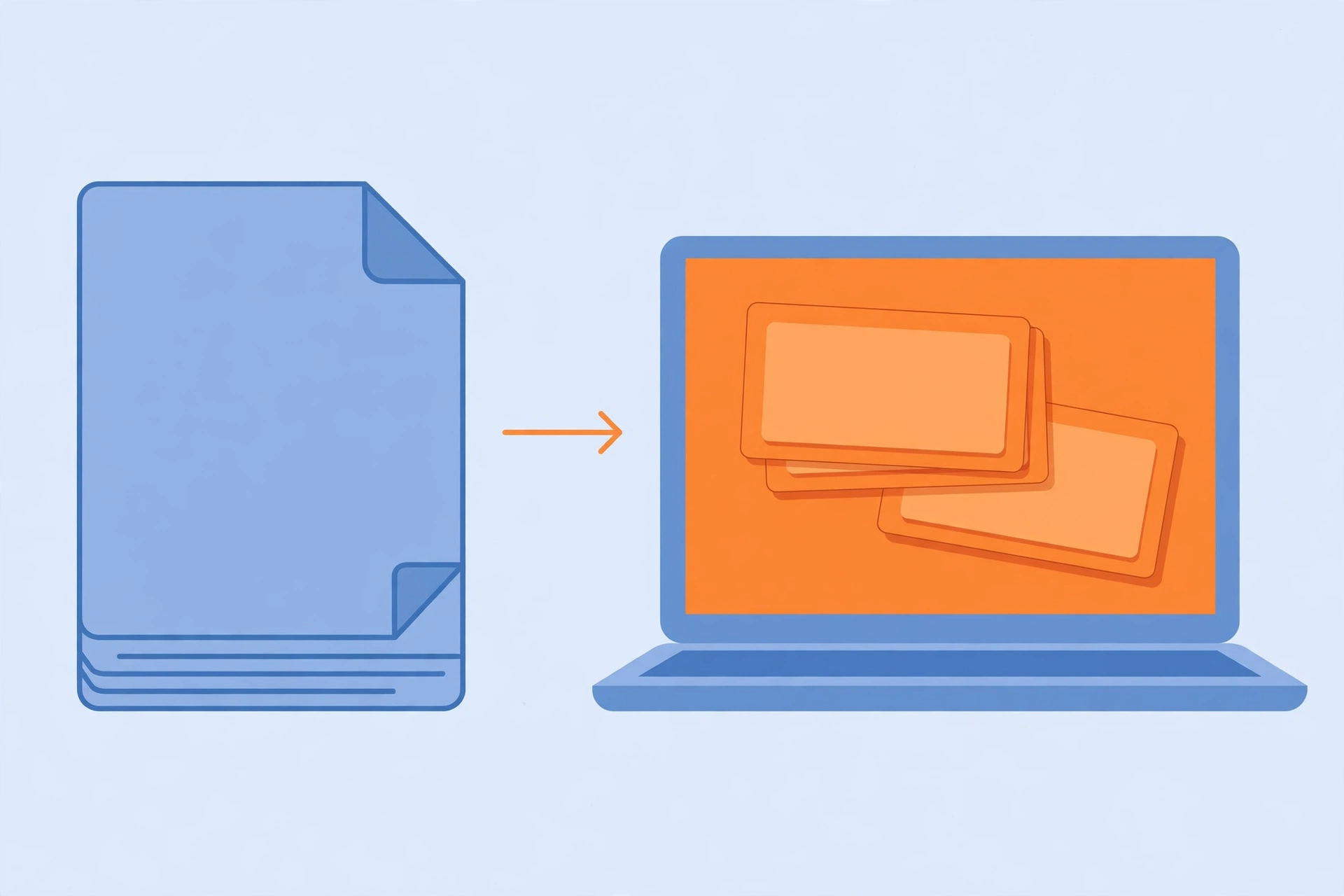
A PDF is made to look the same everywhere, which is exactly why it is hard to present from. You cannot move a bullet point, fix a typo, or add a slide in the middle. That is when you need to convert pdf to powerpoint: the pages of the PDF become real, editable slides you can change, reorder, and present.
It is a common job. A report arrives as a PDF and your manager wants it as slides. A lecture handout needs to become a class deck. A brochure has to turn into a pitch. Doing it by hand means rebuilding every slide from scratch. A converter does the heavy lifting in seconds, and this guide walks through how to use one, what to check afterwards, and the mistakes that waste the most time.
What Happens When You Convert PDF to PowerPoint?
Each page of the PDF becomes one slide. The text on the page becomes text boxes on the slide, and the pictures become images you can move or resize. The result is a .pptx file that opens in PowerPoint, Google Slides, or LibreOffice Impress, and every element on it can be edited.
That is the key difference from simply showing the PDF on a screen. A PDF shown full-screen is still a fixed document — you cannot fix a spelling mistake or add a chart. A converted deck is a working file. You can change the title, swap a photo, add a new slide, or delete the pages you do not need.
The conversion is not perfect. Fonts may change if the original font is not installed on your computer. Text that sat neatly inside a coloured box in the PDF can spill outside it on the slide. And a complex layout — three columns, a table, a chart — may arrive as separate pieces that need nudging back into place. Expect a good starting point, not a finished deck.
How to Convert PDF to PowerPoint Online Free
Follow these steps with any free online converter. The buttons differ, but the order is the same.
- Open the converter in your browser. A good free one asks for no account and no install.
- Choose your PDF file, and keep a copy of the original somewhere safe.
- If the tool offers a choice, pick PPTX as the output format. It is the modern PowerPoint format and works everywhere.
- Start the conversion. A short document takes a few seconds; a long one with many images takes a little longer.
- Download the file and open it in PowerPoint or Google Slides.
- Go through the slides one by one. Fix the fonts, tidy any text that overflowed, and delete any blank slides the conversion created.
If the PDF is long, convert only the pages you need. Most converters let you pick a page range, and a twenty-slide deck is far easier to clean up than a hundred-slide one.
Test with a short file first. Convert five pages, check how the text and images land, and only then convert the full document. That one test saves a lot of rework.
PDF Funda has other free converters too — the Image to Word tool turns pictures into a Word document, and the Compress PDF tool shrinks files that are too large to convert.
What to Check After the Conversion
Open the deck and check these five things before you present it.
First, the text. Read each slide and look for words that ran outside their boxes, letters that changed, or lines that broke in odd places. Fix the font size or widen the box — it usually takes seconds per slide.
Second, the images. Make sure every picture landed on the right slide and at the right size. A chart that shrank to a thumbnail needs to be enlarged, and a logo that drifted into the middle of a slide needs to be moved back to the corner.
Third, the slide count. One PDF page should equal one slide. If you have extra blank slides, delete them. If two pages merged into one slide, convert again with a different tool.
Fourth, the slide size. PDFs are usually A4 portrait, while slides are usually 16:9 landscape. Your deck may open with tall, narrow slides and wide empty margins. Change the slide size in PowerPoint under Design, then Slide Size, and rearrange the content to fit.
Fifth, the tables and charts. A table from the PDF may arrive as separate text boxes instead of a real table. If you need to edit the numbers, rebuild that table in PowerPoint — it is faster than fighting with a dozen loose boxes.
Turning PowerPoint Back into PDF
The reverse trip is just as common: you finish a deck and need to send it as a PDF, because a PDF looks the same on every computer and nobody can edit it by accident. This covers the keywords around converting powerpoint to pdf, which people search for just as often.
PowerPoint can do this itself: File, then Save As or Export, then choose PDF. Google Slides has the same option under File, then Download, then PDF. Both are free and built in, so there is no need for a website when you have the app.
Before you export, check two things. First, look at the slide size — a 16:9 deck exports as wide PDF pages, which is fine on screen but prints oddly. Second, check that no text runs off the edge of a slide, because the PDF will cut it off exactly as it appears.
Scanned PDFs and Large Files
A scanned PDF is a set of page photos, not a document with real text. A converter that only reads text will produce blank slides, because there is nothing to read. The fix is OCR, which reads the words out of the image first. If your PDF is a scan, use a converter that supports OCR, or rescan the document as a searchable PDF.
Large files can fail or time out. If your PDF is over the converter’s size limit, split it into parts first, or shrink it with the Compress PDF tool on PDF Funda, then convert the smaller files one at a time.
Password-protected PDFs will not convert until they are unlocked. If you know the password and you are allowed to remove it, save an unlocked copy and convert that instead.
Common Mistakes to Avoid
The first mistake is presenting the converted deck without opening it. Always go through every slide first. A chart on the wrong slide or a title that ran off the edge is easy to miss until you are standing in front of an audience.
The second is converting a scanned PDF and expecting editable slides. Check first whether the PDF text is selectable — try to highlight a sentence with your mouse. If you cannot select it, the file is a scan.
The third is ignoring the slide size. A deck converted from A4 pages looks wrong on a projector until you change it to 16:9 and rearrange the content.
The fourth is uploading a confidential deck to a service you have not checked. Use a converter that processes the file in your browser, or read the privacy policy first. The same safety habit applies to every file tool — our guide to compressing a PDF explains it in detail.
The fifth is converting the only copy. Keep the original PDF. If the deck comes out wrong, you can run the original again instead of rebuilding slides by hand.
Frequently Asked Questions
Is it free to convert PDF to PowerPoint online?
Yes. Free converters handle everyday documents with no signup. Very large or scanned files sometimes need OCR support or a paid plan.
Will the converted slides be editable?
Yes. The text becomes editable text boxes and the images become movable pictures. You can change words, swap images, and add or delete slides.
Can I convert a scanned PDF to PowerPoint?
Only with OCR. A plain converter reads text, and a scan has no text — only an image. Use a converter with OCR, or rescan as a searchable PDF.
How do I convert PowerPoint back to PDF?
In PowerPoint, use File, then Save As or Export, then PDF. In Google Slides, use File, then Download, then PDF. Both are free and built in.
Will the formatting stay exactly the same?
Mostly, but not perfectly. Adobe’s own guide to converting PDF to PowerPoint notes that each PDF page becomes a slide with the formatting preserved — in practice, expect to fix fonts and tidy a few text boxes before presenting.