Compress PDF Online Free – Reduce PDF File Size in Your Browser
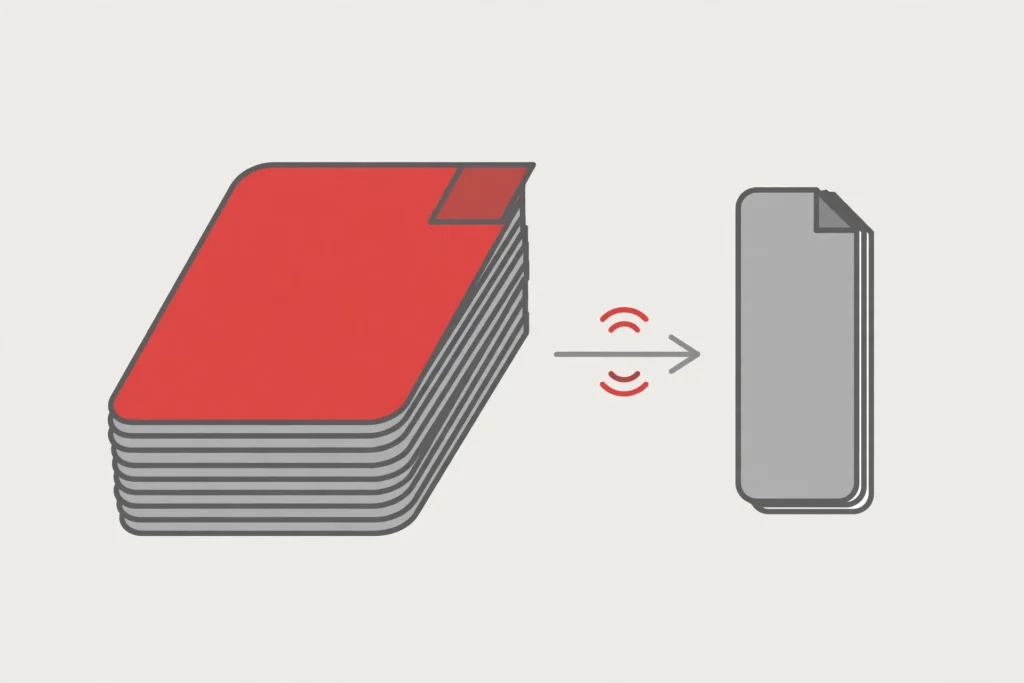
A PDF that is too big is a small problem with an annoying habit: it blocks your email, it fails the upload form, and it eats your phone storage. The fix is simple — compress PDF online free, and the file shrinks enough to send.
Most PDFs get big because of the pictures inside them. A compressor rebuilds those pages at a smaller size, so a 10MB report can drop to 2MB and still read clearly.
What Does It Mean to Compress a PDF?
Compressing a PDF means making the file smaller while keeping the pages readable. A compressor does this by lowering the resolution of images inside the document, removing repeated data and cleaning up unused parts of the file.
Some tools work by rebuilding each page as an image. That gives the biggest size drop, but it also removes selectable text, links and fillable forms, because the page is no longer real text — it is a picture of text.
Other tools keep the text and only squeeze the images. The file does not shrink as much, but the document stays searchable and the links keep working.
Before you compress anything, decide which kind of result you need. If the PDF only has to be read, image rebuilding is fine. If people must copy text or click links, keep the text intact.
Why Do PDFs Get So Large?
A PDF grows large for a few predictable reasons.
The biggest cause is images. A scanned page is a full-page photo, and a report with fifty scanned pages can easily reach 20MB or more. Photos pasted into a document at full camera resolution add weight fast.
Embedded fonts add size too. A PDF that carries its fonts inside the file looks the same on every computer, but each font adds hundreds of kilobytes.
Hidden data also piles up. Old versions of edited pages, attached files, form data and metadata stay inside the file even when you cannot see them on screen.
Knowing the cause helps you pick the right fix. A scan-heavy PDF needs image compression. A text-heavy PDF with embedded fonts may barely shrink at all, and that is normal.
How to Compress a PDF Online Free
Follow these steps with the free Compress PDF tool on PDF Funda:
- Keep a copy of your original PDF somewhere safe.
- Open the Compress PDF tool.
- Choose your PDF file. The limit is 25MB per file, up to 200 pages.
- Start with render scale 1 and JPEG quality 0.8.
- Choose Process and compare the original size with the new size.
- If the result is not small enough, lower the scale or the quality a little and run it again.
- Download the compressed PDF, open it, and check the small text, signatures and page count before you send it.
The tool rebuilds pages as JPEG images, so selectable text, links and forms are removed. A download is offered only when the result is actually smaller than the original — if nothing can be saved, the tool says so instead of giving you a bigger file.
How Much Can You Shrink a PDF?
It depends on what is inside the file.
A scan-heavy or photo-heavy PDF can often shrink by 50 to 80 percent. A 10MB file full of high-resolution pictures can drop below 2MB with settings that still look fine on screen. Adobe’s own guide notes the same range for image-heavy files: https://www.adobe.com/acrobat/online/compress-pdf.html
A text-only PDF barely shrinks at all, because text data is already compact. Turning text pages into images can even make the file larger, which is why a good tool refuses to offer a download when no saving is possible.
There is no guaranteed target size. A compressor cannot promise “exactly 1MB” — the result depends on the pages, the pictures and the settings you choose. Aim for the size your email or form allows, and stop as soon as the file fits.
When Compression Does Not Help
Sometimes a PDF refuses to get smaller, and it helps to know why.
If the file is mostly text, there is little to squeeze. Rebuilding text pages as images usually makes things worse, not better.
If the file was already compressed once, a second pass saves almost nothing. Compressing the same file again and again only wears down the quality.
If the PDF is protected with a password or encryption, most online tools cannot open it at all. Remove the protection first, if you are allowed to, or use a desktop app that can handle protected files.
In these cases, the better move is to split the document. Take out the pages you do not need with a page remover, or send the file in two parts, instead of forcing a compression that hurts quality for no gain.
Will Compressing a PDF Hurt Quality?
It can, so check the result before you send it.
Lowering image resolution makes small text blurry first. Signatures, stamps and fine diagrams suffer next. A photo in the document may look fine at a glance but show blocky patches when zoomed in.
The safe habit is to compress in steps. Start gentle, check the pages, and only go lower if the file still does not fit. Never compress the compressed copy a second time — always start from the original if you need a different size.
Keep the original file. If the compressed version turns out unreadable, you can run the original again with gentler settings instead of losing the document.
Common Mistakes to Avoid
The first mistake is compressing the only copy. Always keep the original, because compression throws information away and cannot be undone.
The second is using the lowest quality setting straight away. Start at 0.8, check the result, and lower it only if you must. The smallest file is not the best file — the readable one is.
The third is sending the result without opening it. Always open the compressed PDF and check every page, especially the first and last ones, before you email it to someone important.
The fourth is uploading sensitive documents to a tool you have not checked. This tool processes files in your browser memory and does not upload them, but other services may send your file to their servers. For private records, check the privacy policy first.
Frequently Asked Questions
Is it free to compress PDF online?
Yes. The Compress PDF tool on PDF Funda is free to use in your browser, with no sign-up and no watermark on the result.
Can I compress a PDF to a specific size, like 1MB?
No tool can promise an exact size, because the result depends on the pages inside the file. Compress in steps and aim for just under your limit, such as 900KB for a 1MB cap.
Will the compressed PDF keep selectable text?
Not with this tool. It rebuilds pages as images, so selectable text, links and fillable forms are removed. Save a text copy first if you need the words.
Can I compress a scanned PDF?
Yes, scanned PDFs compress well, because they are mostly images. Start at quality 0.8 and check that the scanned text stays readable.
Is it safe to compress a PDF online?
It depends on the tool. This one works in your browser memory and does not upload your file. For confidential documents, always check how a service handles files before you use it.
Need the pages as pictures instead? Try our guide to converting PDF to JPG.