PDF to Excel Converter Online Free – Turn PDF Tables into Editable Spreadsheets
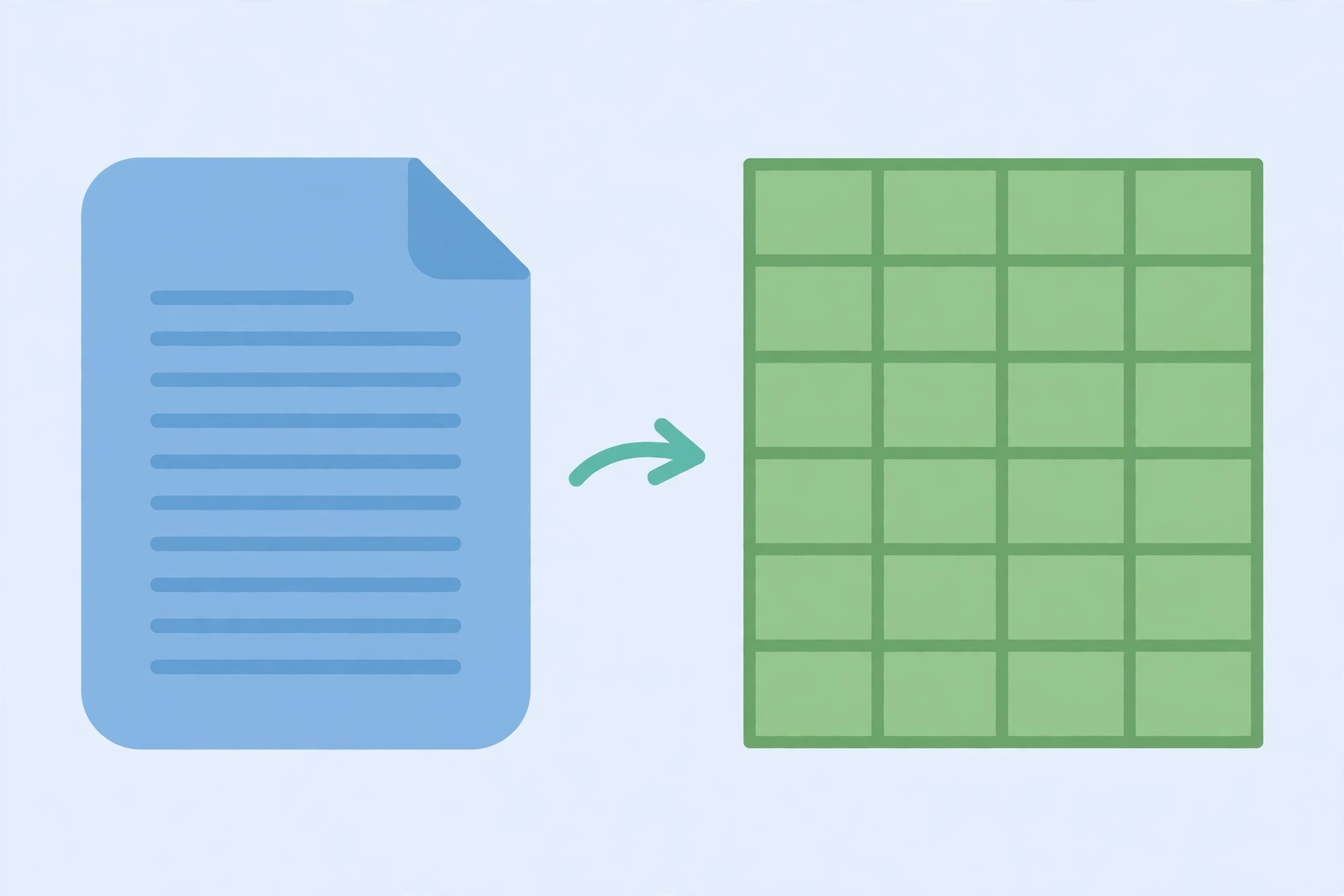
A PDF table looks fine on screen, but you cannot sort it, add it up, or filter it. The numbers sit there like a photo of a spreadsheet, not a real one. That is the exact problem a pdf to excel converter online free solves: it reads the tables trapped inside a PDF and turns them into an editable spreadsheet you can actually work with. Try it now with our free PDF to Excel Converter. It runs entirely in your browser, so your file never leaves your device.
Bank statements, invoices, price lists, exam results, sales reports — most of them arrive as PDFs, and most of them need to become spreadsheets before anyone can use the numbers. Doing it by hand means retyping row after row, and one slipped digit can throw off a whole total. A converter does the boring part in seconds, and this guide shows you how to use one well, what to check afterwards, and where conversions usually go wrong.
What Does a PDF to Excel Converter Do?
A converter looks at a PDF page and finds the tables on it: the rows, the columns, the cell borders, and the numbers inside them. It then rebuilds that grid as an Excel file, usually .xlsx, with the values placed in real cells. Once the file opens in Excel or Google Sheets, every cell is editable. You can sort a column, add a SUM formula, filter out the rows you do not need, or build a chart from the data.
That is very different from copying and pasting text out of a PDF. Paste usually dumps everything into one column or scrambles the order, and you end up cleaning it by hand anyway. A proper converter keeps the table shape, so the numbers land in the right columns.
It is worth knowing what a converter cannot do. It cannot read a table that only exists as a picture — a scanned page, for example — unless it also has OCR, the technology that reads text from images. And it cannot guess numbers that are not in the file. If the PDF is a scan, the result will be blank or broken, and no setting will fix that.
How to Convert PDF to Excel Online Free
Follow these steps with any free online converter. The exact buttons differ from tool to tool, but the order is the same everywhere.
- Open the converter in your browser. There is nothing to install, and a good one asks for no account.
- Choose your PDF file. Pick the file with the table in it, and keep a copy of the original somewhere safe.
- If the tool asks, pick the pages that hold the table. Converting only those pages keeps the spreadsheet clean.
- Choose the output format — XLSX for modern Excel, or XLS if you use a very old version.
- Start the conversion and wait a few seconds. A long report with many tables takes a little longer.
- Download the spreadsheet, open it in Excel or Google Sheets, and check the numbers against the PDF before you trust them.
If your file has several tables, convert the whole document in one go rather than page by page. It is easier to delete the extra sheets afterwards than to stitch separate files together.
One useful habit: convert a small test file first. A one-page invoice tells you in seconds whether the converter handles your tables well, before you trust it with a fifty-page statement.
PDF Funda has other free converters too — the Image to Word tool turns pictures into a Word document, and the Compress PDF tool shrinks files that are too large to convert.
What Converts Well — and What Does Not
Clean, digital PDFs convert best. These are PDFs made by software — exported from Excel, an accounting app, or a bank system. The text inside them is real text, and the table borders are real lines. A converter reads them easily, and the result usually needs only a quick tidy-up.
Tables with merged cells are harder. A title stretched across the top of a table, or a header that spans two columns, can land in the wrong cell or split into two. The numbers are still there, but you may need to move them by hand.
Multi-line cells cause trouble too. An address or a product description that wraps over two lines inside one cell may split into two rows. That shifts everything below it down by one row, so check the row count after converting.
Colour and formatting rarely survive. Expect plain black text on white cells, even if the original table was full of colour. The values matter more than the look, and you can reformat the spreadsheet in a minute.
Bank statements deserve a special note. They convert well when the PDF is digital, but the running-balance column sometimes merges with the amount column. Always check a few totals by hand — add up one page of transactions and compare it with the statement’s own total.
How to Fix a Messy Spreadsheet After Conversion
Most conversions need a little cleaning, and it takes less time than retyping. Start with these fixes, in this order.
First, delete the empty rows and columns. Converters often add blank rows where the PDF had gaps or page headers. Select them and delete, so the table becomes one solid block.
Second, fix the numbers. Amounts sometimes arrive as text, which means SUM formulas ignore them. Select the column, change the format to Number, and the formulas start working. If a number has a comma as a thousands separator, Excel may still read it fine; if it shows as text, use Find and Replace to remove stray spaces.
Third, fix the dates. A date like 12/03/2026 might flip to March 12 or December 3 depending on your region settings. Pick the column, set the date format you want, and scan a few rows to confirm they match the PDF.
Fourth, split merged cells. If two values share one cell, use Text to Columns in Excel, or split them by hand for small tables.
Fifth, check the headers. Make sure the first row holds the column names — Product, Quantity, Price, Total — and that no data row has slipped above them. A clean header row is what makes sorting and filtering work later.
If you only need the raw data and not a formatted table, the PDF to CSV tool on PDF Funda is a simpler option: it exports the extracted text as CSV records you can open in any spreadsheet.
Can You Convert Excel to PDF Too?
Yes, and it is the same job in reverse. An excel to pdf converter takes a spreadsheet and turns it into a PDF, which is useful when you need to share a file that nobody can edit by accident — a price list, a report, or an invoice.
Excel itself can do this without any website: File, then Save As or Export, then choose PDF. Google Sheets has the same option under File, then Download, then PDF. The free online route makes sense when you are on a phone or a borrowed computer without Excel installed.
One tip for the reverse direction: set your print area before converting. A spreadsheet with a hundred empty columns will turn into a PDF with pages of blank space. Select only the cells you want, set the print area, and the PDF comes out tidy.
Scanned PDFs and Password-Protected Files
A scanned PDF is a set of photos, not a document with real text. A plain converter will find nothing to convert, because there are no characters to read — only pixels. The fix is OCR, which reads the text out of the image first. Some converters include it; many free ones do not. If your file is a scan, look for a converter that says it supports OCR, or scan the document again as a searchable PDF if you can.
A password-protected PDF will not convert at all until it is unlocked. If you know the password and you are allowed to remove the protection, open the file, remove the password, save a clean copy, and convert that. Never upload a file you are not supposed to open.
Large files can also fail. If a PDF is over the converter’s size limit, split it first — or shrink it with the Compress PDF tool on PDF Funda — and convert the smaller file.
Common Mistakes to Avoid
The first mistake is trusting the result without checking it. Open the spreadsheet, compare a few rows with the PDF, and add up one column. A converter can silently drop a row, and a missing row is worse than a slow conversion.
The second is converting a scanned PDF and expecting a spreadsheet. Check whether your PDF has selectable text first: try to highlight a line with your mouse. If you cannot select the text, it is a scan.
The third is uploading sensitive files to a service you have not checked. Bank statements and invoices hold private numbers. Use a tool that processes the file in your browser, like the tools on PDF Funda, or at least read the service’s privacy page first. Our guide to compressing a PDF explains the same safety habit in more detail.
The fourth is converting the only copy. Keep the original PDF. If the spreadsheet comes out wrong, you can run the original again instead of starting from a broken file.
Frequently Asked Questions
Is it free to convert PDF to Excel online?
Yes. Free online converters handle everyday files with no signup. Large or scanned files sometimes need a paid plan or OCR support.
Will the converted spreadsheet keep my table formatting?
The values and the grid usually survive; colours, fonts and borders usually do not. Expect a plain spreadsheet and reformat it in a minute.
Can I convert a scanned PDF to Excel?
Only with OCR. A plain converter reads text, and a scan has no text — only an image. Use a converter with OCR support, or rescan the document as a searchable PDF.
Is it safe to convert a bank statement online?
It depends on the tool. Prefer one that works in your browser without uploading the file, and check the privacy policy before uploading anything sensitive.
What is the difference between XLS and XLSX?
XLS is the older Excel format, used before Excel 2007. XLSX is the modern format. Adobe’s own guide to converting PDF to Excel notes that its converter works with both, and XLSX is the better choice for new files.