Online Image Resizer – Resize Any Photo to the Exact Size You Need
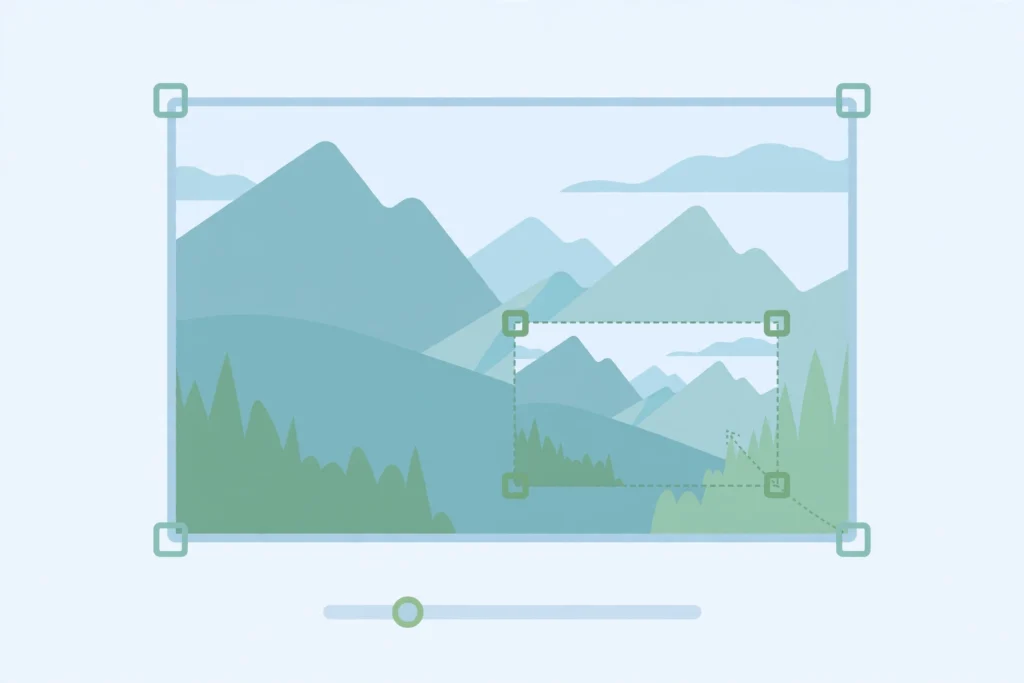
A photo that is too big will not fit where you need it. A form asks for a file under a certain size, a website wants a banner of exact dimensions, and a profile picture has to be square. An online image resizer fixes the size in about a minute, with no software to install and nothing to learn.
It works in your browser. You pick a photo, type in the width and height you want, and download the new version. That is the whole job, and it costs nothing on PDF Funda.
What an online image resizer does
A resizer changes the pixel dimensions of a picture. A photo that starts at 4000 by 3000 pixels can come out at 800 by 600, or 1200 by 800, or any size you type in. The picture itself stays the same, only its size changes.
Most resizers also let you keep the aspect ratio locked, so the photo does not stretch. When the lock is on, changing the width updates the height for you, and faces and shapes stay normal. You can also pick the output format, usually PNG, JPEG, or WebP, and set the quality for JPEG and WebP files.
The key point is that everything happens on your own device. The photo is processed in your browser memory and never has to be uploaded to a server, which is how the free tools on this site work.
When you need to resize a photo
The need usually shows up at the worst moment, right when you are trying to submit something. These are the cases that come up most often.
A profile picture is the classic one. Social networks, job sites, and school portals all ask for a square photo, often at a set size like 400 by 400 pixels. A photo straight from a phone is far bigger and the wrong shape, so it gets cropped oddly unless you resize it first.
Online forms are another. Government portals, exam registrations, and job applications often cap uploads at 200 KB or 500 KB, and they reject anything larger without explaining why. Shrinking the dimensions is usually the quickest way under the limit.
Online sellers hit the same wall. A shop listing looks best when every product photo has the same dimensions, and a batch of mismatched photos makes a store look untidy. Sellers resize whole sets of images so the grid lines up.
Then there are emails and chats. A 6 MB photo from a phone camera is slow to send and eats mobile data. A resized copy at 1200 pixels wide looks just as good on a screen and sends in a fraction of the time.
How to resize an image online in five steps
Open the Resize Image tool on PDF Funda and follow these steps.
First, select your photo. Any common format works: PNG, JPEG, WebP, GIF, or BMP.
Second, type the width and height you need in pixels. If you only know one of them, leave the aspect ratio lock on and set the other one, and the tool will work out the rest.
Third, choose the output format. JPEG is best for photos, PNG is best when you need sharp edges or transparency, and WebP gives small files with good quality.
Fourth, set the quality if you picked JPEG or WebP. A value around 0.8 keeps a photo looking clean while cutting the file size a lot.
Fifth, press Process, check the result, and download it. Always look at the resized photo before you use it, so you catch any stretching or blur early.
Resize by pixels or by percentage
There are two ways to pick a new size, and the right one depends on what you know.
Resizing by pixels is exact. You type in numbers like 800 by 600, and that is what you get. Use this when a website or form tells you the size it wants.
Resizing by percentage is quick. Cutting a photo to 50 percent halves both sides, and the file size drops to roughly a quarter of the original. Use this when you just need something smaller and the exact size does not matter.
If you are working with many photos at once, the Bulk Resizer handles a whole batch in one go, with the same width, height, and format for every file. That keeps a product gallery or a set of blog images consistent without repeating the same steps ten times.
How to keep your photo looking sharp
Resizing down is safe. A photo that starts big and ends small keeps most of its detail, because the tool has plenty of pixels to work with. Resizing up is different. Making a small photo bigger cannot add detail that was never there, so the result turns soft or blocky. Start from the largest original you have whenever you can.
Keep the aspect ratio locked unless you have a reason to change it. Stretching a photo to fit a new shape makes people look wider or taller than they are, and it is the most common resizing mistake.
Pick the right format for the job. A photo saved as PNG will be much larger than the same photo as JPEG, with no visible gain. And after you resize, open the result at full size and check the edges and text. If it looks clean at 100 percent, it will look clean anywhere.
Common sizes worth knowing
Exact rules change from site to site, so always check what the service you are using asks for. These are the sizes that come up again and again.
A profile photo is usually square, often 400 by 400 pixels. A website banner is often 1200 by 628 pixels. A blog image is often 1200 pixels wide. A full-screen phone wallpaper is around 1080 by 1920 pixels. A product photo for a shop is often 1000 by 1000 pixels.
If a form only gives you a file size limit instead of dimensions, start at 1200 pixels on the longest side with JPEG quality near 0.8. That combination lands under most limits, and you can go smaller if you need to.
Resizing is not the same as compressing
People mix these two up, and it helps to know the difference. Resizing changes the dimensions, the number of pixels. Compressing keeps the dimensions and squeezes the file smaller by lowering the quality or removing hidden data.
They work well together. Resize first to the dimensions you need, then compress if the file is still too big. Our guide to shrinking photos to under 1 MB walks through the compressing half of that job, and the JPG to PNG guide covers changing formats when a site asks for a specific file type. For a deeper look at what happens to pixels when an image changes size, the image scaling page on Wikipedia explains the maths in plain terms.
Frequently asked questions
Does resizing a photo lower its quality?
Going smaller keeps the quality good, because the tool has more pixels than it needs. Going bigger lowers the quality, because new pixels have to be guessed. Always start from the biggest original you have.
Can I resize a photo on my phone?
Yes. The tool runs in the browser, so it works on a phone, a tablet, or a computer. Pick the photo from your gallery, set the size, and download the result.
What is the difference between resizing and cropping?
Resizing changes the whole photo to new dimensions. Cropping cuts part of the photo away. The resizer here also has a crop option, so you can trim the edges first and then set the final size.
Is the online image resizer really free?
Yes. There is no signup, no watermark, and no limit mentioned on the tool page. Your photo is processed in your browser, so it is never uploaded anywhere.