Image Compressor to 1MB – Shrink Photos to Under 1MB Online Free
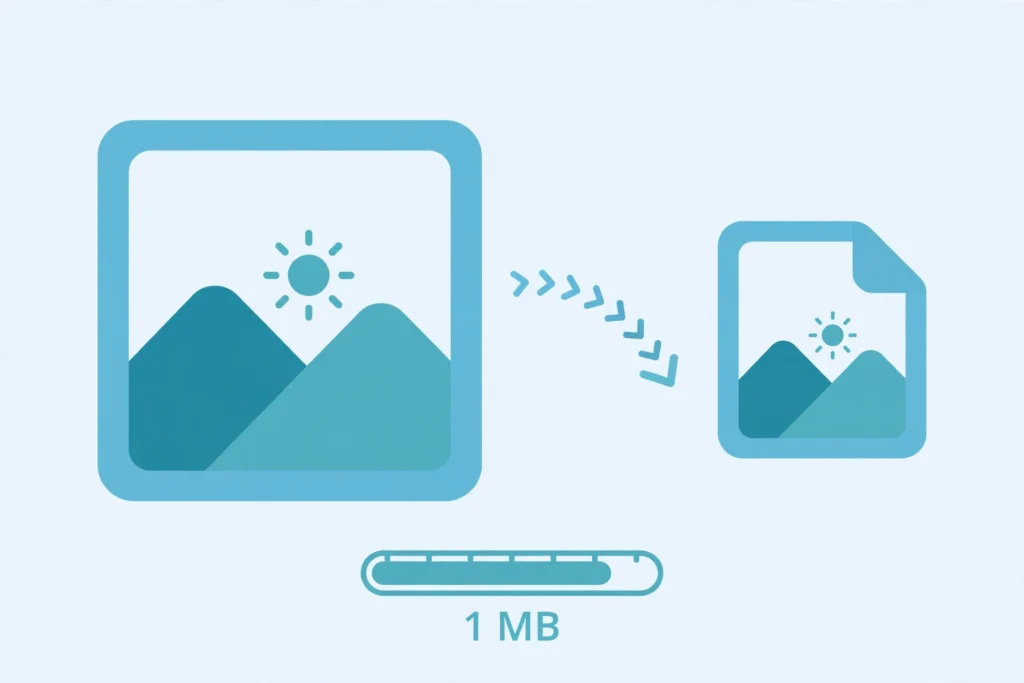
Many forms, job portals and exam sites cap uploads at 1MB. A photo straight from a phone is often 3MB, 5MB or more, so the upload fails and the form will not move on. An image compressor to 1MB fixes that in a minute: it shrinks the photo below the limit while keeping it clear enough to read and print.
You do not need to install an app or learn photo editing. A browser tool does the work, and the file stays on your own device while it runs.
What Does an Image Compressor to 1MB Do?
An image compressor to 1MB takes a photo that is too large and makes it smaller. It does this by lowering the quality setting a little, changing the format, or trimming the pixel size. The goal is a file under 1MB that still looks good.
Most tools let you pick the output format. JPEG and WebP give the smallest files for photos. PNG stays large because it keeps every pixel exactly, so it is a poor choice when size is the problem.
The PDF Funda Image Compressor works in your browser. Your photo is processed in browser memory and is not uploaded to a server. You choose the format and quality, run it, and download the result only if it is smaller than the original.
Why 1MB Is Such a Common Limit
The 1MB limit shows up everywhere because it is a fair middle ground. It is big enough for a clear photo and small enough to keep servers fast.
You will meet it on government forms, university applications, job portals, visa uploads and email attachments. Some sites set the limit at 200KB or 500KB, but 1MB is the most common cut-off for a single photo.
Knowing the limit before you start saves time. Check the form’s file-size rule first, then compress once to the right target instead of guessing again and again.
How to Compress an Image to 1MB
Follow these steps with the free Image Compressor on PDF Funda:
- Open the Image Compressor tool.
- Select your photo from your device. JPG, PNG, WebP, GIF, SVG and BMP files are accepted.
- Set the output format to JPEG or WebP. For a normal photo, JPEG is the safe pick.
- Set the quality to 0.8 to start. That keeps most of the visible detail.
- Choose Process and compare the new size with the original.
- If the result is still over 1MB, lower the quality to 0.6 or 0.5 and run it again.
- Download the compressed photo and open it to check that it still looks sharp.
The whole job takes less than a minute for one photo. If you have several photos, do them one at a time and check each result before moving on.
What to Do If the Photo Is Still Over 1MB
Some photos refuse to drop below 1MB at quality 0.8. That usually means the picture has a lot of fine detail, such as grass, crowds or tiny text. Three moves help.
First, lower the quality in small steps. Dropping from 0.8 to 0.6 often cuts the size by a third, and the change is hard to notice on a screen.
Second, shrink the pixel size. A photo that is 4000 pixels wide can be reduced to 2000 pixels wide and still look fine on a form or a web page. Use the Resize Image tool to set the width before compressing.
Third, switch to WebP. WebP often beats JPEG by 25 to 30 percent at the same visible quality, so a photo that stays over 1MB as a JPEG may fit as a WebP. Check first whether the site you are uploading to accepts WebP files.
JPEG, PNG or WebP — Which Format Shrinks Best?
The format you pick matters more than most people expect.
JPEG is the classic choice for photos. It uses lossy compression, which throws away a little detail to save a lot of space. It does not support transparency, so it is wrong for logos with clear backgrounds.
PNG keeps every pixel and supports transparency. That makes it great for screenshots, diagrams and logos, but a bad choice for shrinking a photo, because the file stays large.
WebP is the modern middle ground. It supports both lossy and lossless compression, handles transparency, and usually produces a smaller file than JPEG at the same quality. Google’s guide to choosing the right image format explains the trade-offs in detail: https://web.dev/articles/choose-the-right-image-format
For a photo that must be under 1MB, start with JPEG. If the file is still too big, try WebP.
Will Compressing to 1MB Hurt Image Quality?
A little compression is invisible in normal use. A photo compressed from 4MB to 900KB still looks clean on a phone screen, a web page or a printed form.
Problems start when you push quality too low. Below 0.4, smooth areas like skies can show banding, and small text can blur. The fix is simple: compress in steps and stop as soon as the file fits. There is no need to squeeze it further than the limit requires.
Always keep the original photo. If a compressed version turns out too soft, you can run the original again with a gentler setting instead of starting over from a damaged copy.
Common Mistakes to Avoid
The first mistake is compressing a photo that is already small. If the file is already under 1MB, leave it alone — extra compression only loses detail.
The second is ignoring the pixel size. A huge photo compressed hard will look worse than a smaller photo compressed gently. Resize first, then compress.
The third is saving over the original. Keep the original file in a separate folder so you can always go back.
The fourth is trusting the size on screen alone. Always check the actual file size in kilobytes before uploading, because a photo can look small on screen and still be over the limit.
Frequently Asked Questions
Is an image compressor to 1MB free?
Yes. The Image Compressor on PDF Funda is free to use in your browser, with no sign-up and no watermark on the result.
How do I compress a photo to exactly 1MB?
You cannot hit exactly 1MB every time, because the result depends on the photo. Compress in steps and aim for just under 1MB, such as 900KB to 990KB, so the upload limit is met with room to spare.
Can I compress a PNG to under 1MB?
Yes, but change the format first. Convert the PNG to JPEG or WebP during compression, because PNG keeps every pixel and stays large. Note that transparency is flattened onto white for JPEG output.
Does compression work on phone photos?
Yes. Phone photos are usually the biggest files people deal with, and they compress well because they start at high resolution. Open the tool in your phone’s browser and follow the same steps.
Is it safe to compress photos online?
It depends on the tool. This one processes files in your browser memory and does not upload them. For private photos, always check how a tool handles your files before you use it.
Once your photo is under 1MB, you can turn it into a PDF with our JPG to PDF converter if the form you are filling asks for a PDF instead of an image.