Online PDF Split: Split a PDF into Separate Files for Free
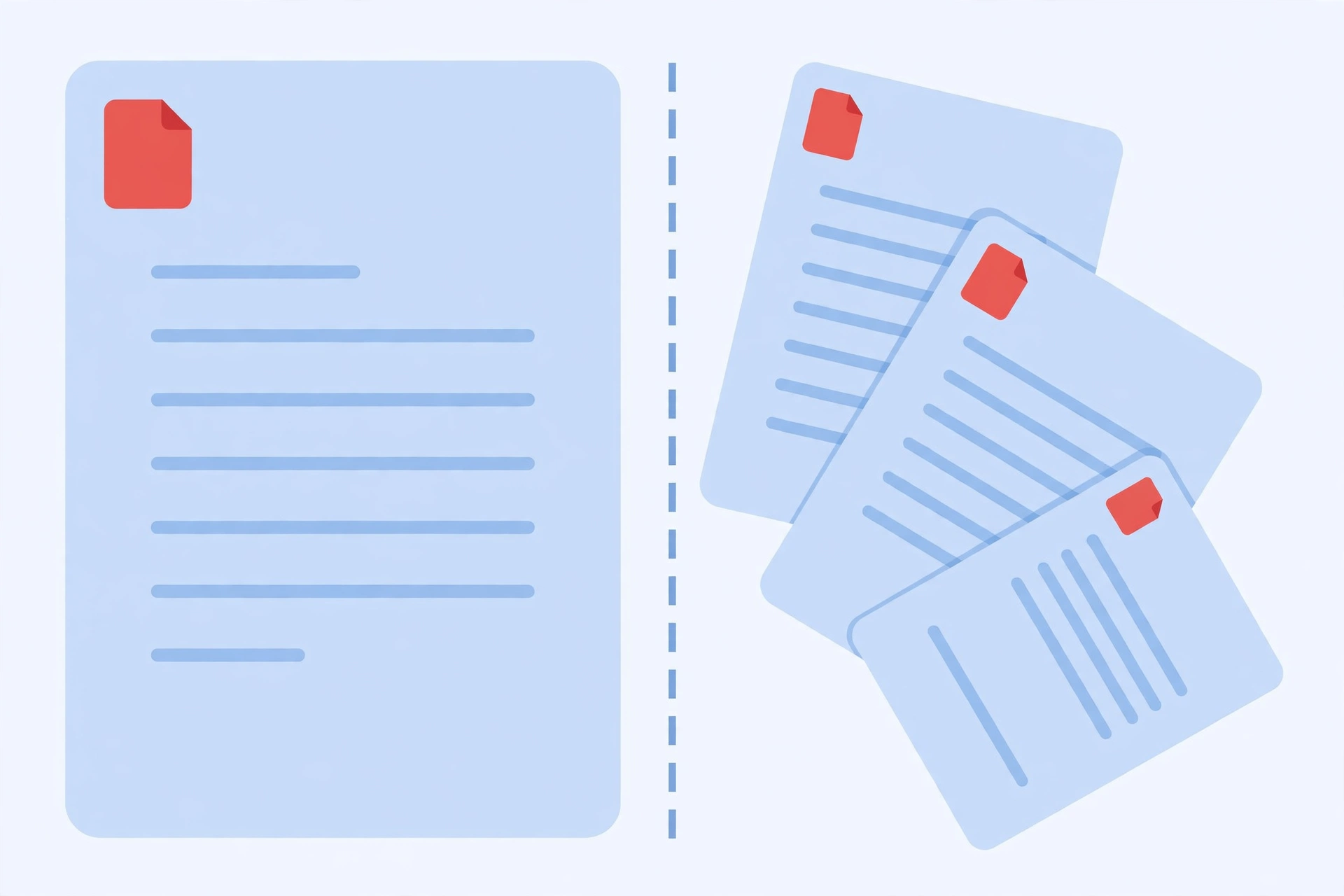
Splitting a PDF online is the fastest way to break one long document into smaller, separate files — a few pages from a report, chapters of an ebook, or one contract out of a scanned bundle — without installing any software.
This guide shows you how to split a PDF online for free, the ways to divide a file, and what to check so your pages come out in the right order.
Direct answer: To split a PDF online, open a free PDF splitter in your browser, upload your file, choose how to divide it — by page range, into single pages, or every few pages — then download the new files. The original stays untouched.
What Does It Mean to Split a PDF?
Splitting a PDF means taking one PDF file and turning it into two or more separate PDF files. Each new file contains only the pages you chose for it.
People split PDFs for practical reasons every day:
- Sharing only what matters — send a client pages 4–9 of a 60-page report instead of the whole document.
- Breaking up long documents — turn a 200-page manual into one file per chapter.
- Separating scanned bundles — a single scan of several letters becomes one PDF per letter.
- Meeting upload limits — email and form uploads often cap file size, and smaller files pass through easily.
- Organising archives — store each invoice, certificate or statement as its own file.
Splitting is different from extracting pages. Extracting pulls one or a few pages out of a PDF. Splitting divides the whole document into parts. If you only need a single page, our guide to extracting pages from a PDF covers that exact job.
How to Split a PDF Online in 4 Steps
You can split any PDF with our free Split PDF tool — it runs entirely in your browser, so your file never leaves your computer.
Step 1: Open the Split PDF tool
Go to the Split PDF tool page. There is nothing to install and no account to create. The tool works on Windows, Mac, Chromebook, Android and iPhone, in any modern browser.
Step 2: Upload your PDF
Click the upload button and choose the PDF from your device, or drag the file onto the page. Large files may take a few seconds to load — a 100-page document is no problem.
Step 3: Choose how to split it
Pick the split method that matches what you need:
- By page range — type the ranges you want, for example pages 1–5, 6–12 and 13–20, to create three files.
- Every page separately — turn each page into its own PDF, useful when a scan holds many separate documents.
- Every N pages — split after every 5 or 10 pages to get evenly sized chunks.
Double-check your page numbers before you continue. A quick scroll through the page thumbnails helps you catch a wrong range.
Step 4: Download the new files
Click split, then download the files — either one by one or as a single ZIP. Check that each file opens and contains the pages you expected, then you are done.
Splitting a PDF by Page Range vs Every Page
The right method depends on what you plan to do with the result.
| Method | Best for | Result |
|---|---|---|
| By page range | Chapters, sections, selected pages to share | A few files, each with the pages you chose |
| Every page separately | Scanned bundles, one-page documents | One file per page |
| Every N pages | Even chunks for upload limits | Several files of roughly equal size |
Page ranges give you the most control and are the method most people need. Splitting every page is handy when a single scanned file actually contains many separate documents — invoices scanned in one batch, for example.
What Happens to Quality When You Split a PDF?
A proper split does not change your content. The text, images, fonts and layout of each page stay exactly as they were in the original file. Splitting only rearranges pages into new files — it does not re-render or compress them.
Two things can differ, depending on the tool:
- File size — each new file is smaller than the original, roughly in proportion to the pages it holds.
- Interactive elements — links, bookmarks and form fields that point to pages in another split file may stop working, because those pages now live in a different document. Plain text and images are unaffected.
If a page contains a form you still need to fill in, test it after splitting. For most reading and sharing purposes, a split PDF behaves exactly like the original.
Split PDF Online vs Desktop Software
| Online splitter | Desktop software | |
|---|---|---|
| Cost | Free | Often paid, or free with limits |
| Install | None — works in the browser | Download and install required |
| Device | Any device with a browser | Only the computer it is installed on |
| Privacy | File processed in your browser with a client-side tool | File stays on your computer |
| Best for | Quick, occasional splits | Heavy, daily PDF work |
For a one-off split, an online tool is the simpler choice. If you split PDFs all day for work, desktop software may be worth the setup. Either way, prefer a tool that processes the file in your browser rather than uploading it to a server, so your document stays private. Adobe’s own online splitter works the same way in the browser if you want to compare options.
Common Mistakes When Splitting a PDF
- Splitting the wrong copy — keep the original file. Work on a copy, or make sure the tool creates new files and leaves the original untouched.
- Off-by-one page ranges — page 1 is the cover. If your ranges feel one page out, count from the cover, not from the first page of content.
- Forgetting the last pages — when splitting by range, check that the final range reaches the last page, or the tail of the document gets left out.
- Losing the order — name the new files clearly, for example report-part-1-pages-1-5.pdf, so they stay in order in your folder.
- Using a tool that uploads your file — sensitive documents should be split with a tool that works in your browser, not one that sends the file to a server.
What to Do After Splitting a PDF
Once you have your separate files, a few quick steps keep everything tidy:
- Open each file and confirm it holds the right pages.
- Rename the files with clear names that include the page range or chapter.
- Compress any file that is still too large — our Compress PDF tool shrinks files without visible quality loss.
- Reorder or remove pages if a split landed wrong — the Remove PDF Pages guide shows how to drop unwanted pages, and our PDF Combiner guide explains how to merge files back together if you change your mind.
- Convert a split file if someone needs a different format — convert a PDF to text when the words matter more than the layout.
Frequently Asked Questions
Is it free to split a PDF online?
Yes. Free online PDF splitters, including the one on PDF Funda, split PDFs without payment, signup or watermarks. The whole job runs in your browser, so there is no per-file charge and no daily limit to worry about.
Can I split a PDF without installing software?
Yes. An online splitter works in any modern browser on Windows, Mac, Linux, Android or iPhone. You open the tool page, upload the PDF, choose your split method and download the result — nothing is installed.
Will splitting a PDF reduce its quality?
No. Splitting only moves pages into new files; it does not re-render them. Text, images and layout stay exactly as they were. The only things that can change are links or bookmarks that pointed across the split point.
How do I split a PDF into single pages?
Upload the PDF to a splitter and choose the “every page separately” option. Each page becomes its own PDF file, usually downloaded together as a ZIP. This is the fastest way to separate a scanned bundle into individual documents.
Can I split a password-protected PDF?
Most splitters need the file unlocked first. If you know the password, remove it with a tool like our Unlock PDF tool and then split the file. Never try to open a PDF you are not authorised to access.
What is the difference between splitting and extracting pages from a PDF?
Splitting divides the whole document into several files. Extracting pulls out only the pages you choose and leaves the rest behind. Use splitting when you want all the pages kept in separate files; use extraction when you only need one or a few pages.