Free PDF Redact Tool: Black Out Sensitive Text in a PDF for Good
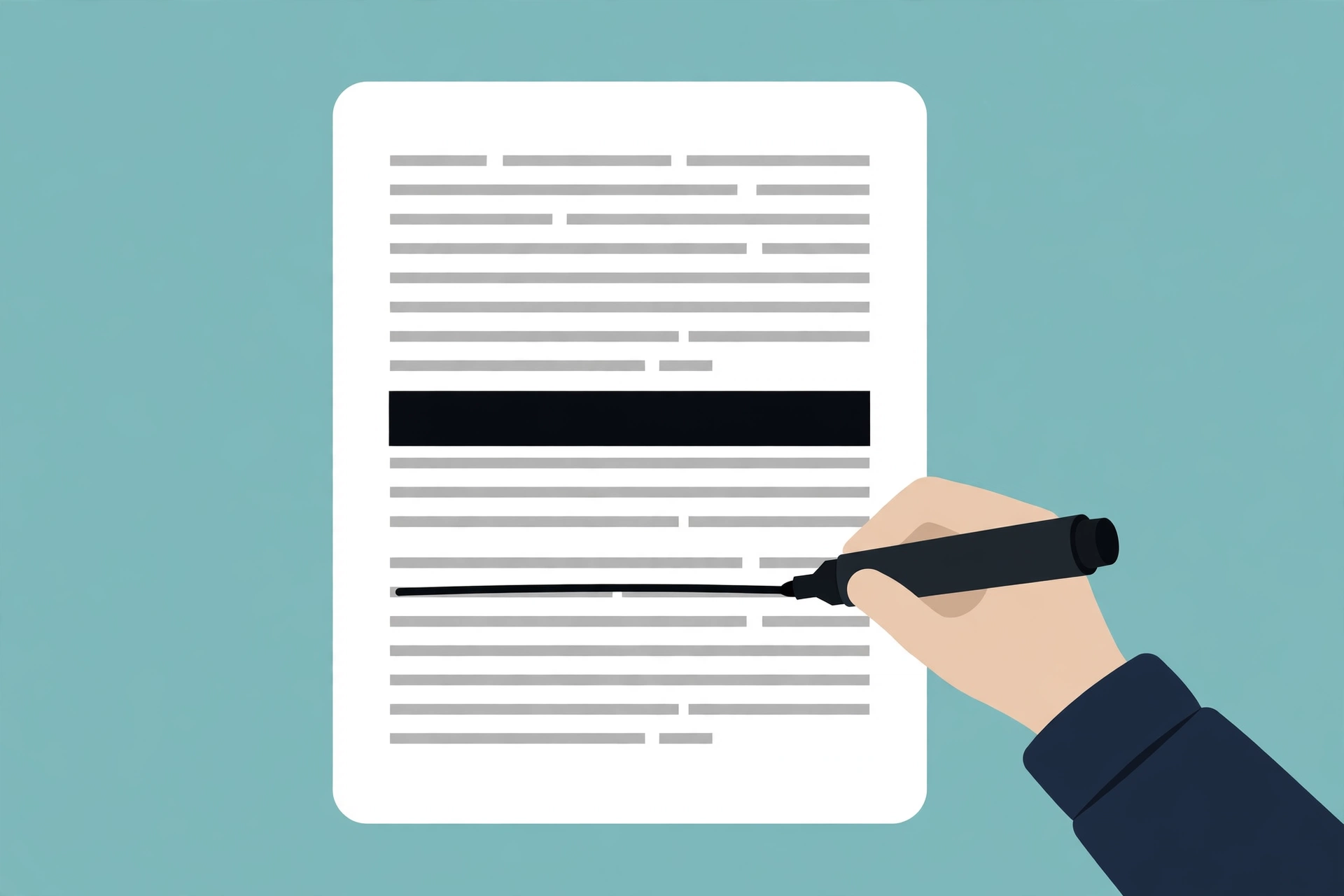
You need to share a PDF, but it contains things nobody else should see: a bank account number on an invoice, a home address on a contract, a client’s name in a report. A free PDF redact tool solves this by permanently removing the marked text from the file, not just covering it up. This guide shows three methods that genuinely work, explains the difference between redaction and simply drawing a black box, and lists the checks to run before you send the file.
A free PDF redact tool permanently deletes the text you mark — the words, and the data hidden behind them — so it cannot be recovered by selecting, copying or searching the file. Drawing a black rectangle over text in a PDF viewer does not do this: the text stays in the file and anyone can reveal it. Use a tool with a real redaction feature, apply the redaction, then check the result before sharing.
What redaction actually does
Redaction is not a black highlighter. When a real redaction is applied, the tool deletes the marked characters from the document’s text layer, removes any images or vector content underneath the marked area, and strips the hidden data attached to that content. What is left is a blank space where the text used to be. The file still opens and reads normally everywhere else.
That is why redaction matters for privacy. A PDF is not just the page you see. It carries a text layer that search, copy and paste, and screen readers all use, plus metadata such as the author name, the software that created it and sometimes the editing history. A proper redaction clears the marked content from all of those layers. A black rectangle drawn on top clears none of them. If the file also needs text or page edits before redaction, our PDF Editor tool can make those changes in your browser.
The most common mistake in this area is also the most dangerous: opening a PDF in a viewer, drawing a black box over an account number, saving, and sending it on. The number is still in the file. Anyone who selects the text under the box, copies the page, or opens the file in another reader can read it. If you remember one thing from this article, remember that.
Method 1: Redact free in your browser with PDF24 Tools
PDF24 Tools is a free online service that includes a redact tool with no account and no install. It is the fastest option when you have one document to clean up and you do not want to install software.
- Open the PDF24 redact tool and upload your PDF.
- Use the redaction tool to draw a box over every piece of text you want removed. Zoom in so you do not miss a character at the edge of a word.
- Apply the redaction. The tool removes the marked text and rebuilds the file.
- Download the redacted copy and save it under a new file name, so the original stays untouched on your computer.
Work on a copy, never the original. If you redact the only copy of a contract and later need the unredacted version, it is gone. Keep the original somewhere safe and share only the redacted file.
Method 2: Redact with Adobe Acrobat
Adobe invented the PDF format, and its redaction workflow is the reference most offices use. Adobe documents the process in its help pages for removing sensitive content from PDFs. The Redact tool itself is part of Acrobat on the desktop, and Adobe’s site also offers free online PDF tools.
- Open the PDF in Acrobat and choose the Redact tool.
- Mark the text, images or whole pages you want removed. Acrobat can also search for patterns, such as email addresses or card numbers, and mark every match at once.
- Apply the redaction and save a copy. Acrobat warns you that the change is permanent, which is exactly the point.
- Check the file before sending it: try to select the redacted area, search the document for the removed word, and confirm nothing is left.
The pattern search in step 2 is worth using on long documents. It catches the second and third appearance of a name or number that you would otherwise miss by eye — the footer on page 9, the reference in an appendix, the number repeated in a table.
Method 3: Flatten the page through an image
If you cannot reach a redaction tool, there is a reliable fallback that needs nothing more than a PDF converter and an image editor. Convert the page to an image, black out the sensitive part in the image, then rebuild the PDF from the edited image. Because the page is now a picture, there is no text layer left to leak.
- Convert the PDF page to a PNG image with our free guide to changing a PDF to PNG.
- Open the image in any image editor and paint a solid black box over the sensitive text. Make sure the box covers the whole word, with a margin around it.
- Save the edited image and turn it back into a PDF. Our guide to combining images into a PDF covers this step.
- Check the result: the redacted area should be a flat black rectangle in a picture, with no text underneath to select.
The trade-off is real: the whole page becomes an image, so its text is no longer searchable or selectable, and the file may get larger. For a page that is mostly sensitive — a scanned form, a bank statement — that is usually an acceptable price. For a 40-page report where one line needs hiding, use Method 1 or 2 instead and keep the rest of the text intact.
What to redact: a checklist
Before you redact, read the whole document once with fresh eyes. Sensitive information hides in places people forget: headers, footers, file names, form fields and the metadata. Run through this list for every document you share outside your own organisation.
| What to check | Where it hides |
|---|---|
| Names of people | Body text, headers, signatures, cc lines |
| Account and card numbers | Invoices, statements, payment sections |
| Addresses and phone numbers | Letterheads, forms, delivery notes |
| Dates of birth and ID numbers | Application forms, HR documents |
| Signatures | Signature blocks, scanned initials |
| Internal comments | Sticky notes, review comments, tracked changes |
| Metadata | File properties: author, title, creation software |
Do not forget the file name itself. A file called “Smith-John-bank-statement-March.pdf” gives away the name even after the document is perfectly redacted. Rename the redacted copy to something neutral before you send it.
Mistakes that leave your data readable
- Drawing black boxes in a viewer. As above: the text stays in the file. Use a real redaction feature.
- Redacting only the first occurrence. A name or number usually appears more than once. Search the document for it after you redact.
- Leaving comments and tracked changes. Review comments can repeat the very text you redacted. Accept or remove them first.
- Forgetting metadata. Check the file properties and clear the author and title fields if they contain personal data.
- Sharing the original by accident. Email autocomplete and cloud-share links love to attach the wrong file. Send the redacted copy from a separate folder, and open it once before you attach it.
- Redacting a screenshot of the text. If you redact a scanned image, the text is a picture, not a text layer — but check that the image itself is fully covered. A half-covered word in a scan can still be read.
Redact, password-protect or blur — which one?
These three tools solve different problems, and picking the wrong one is how data leaks.
| Method | What it does | Use it when |
|---|---|---|
| Redact | Permanently removes the text | The recipient must never see it |
| Password-protect | Locks the whole file | The recipient may see it, but nobody else should |
| Blur | Hides part of an image | The content is a picture, not text |
If the information must never reach the recipient, redact it. A password on the file does not help if the recipient is the person you are hiding it from — they have the password, so they can open it. And blur only works on images; blurring a screenshot of text still leaves the text layer in the PDF unless you flatten the page first. Our guide to encrypting a PDF covers password protection in detail. If the file you need to redact is itself locked, first take a password off a PDF you are authorized to open, then redact the unlocked copy.
Check your work before you share
Spend two minutes on these checks. They are the difference between a redacted file and a file that only looks redacted.
- Select test: drag across a redacted area. Nothing should highlight and nothing should copy.
- Search test: search the document for the removed name or number. Zero results is the only acceptable answer.
- Text test: try copying the whole page into a text editor. The redacted words must not appear.
- Properties test: check the file properties for author, title and keywords, and clear anything personal.
- Fresh-eyes test: open the file on a different device or in a different reader and look at every page once.
If any test fails, do not send the file. Go back, redact again, and repeat the checks.
Frequently asked questions
Is there really a free PDF redact tool?
Yes. Several free tools offer real redaction in the browser, including PDF24 Tools, and Adobe’s Acrobat includes a dedicated Redact tool. The key is to use a feature actually called redaction. A free PDF editor that only lets you draw shapes is not a redaction tool, however black the shape is.
Does redaction work on scanned PDFs?
Yes, with a caveat. A scanned PDF has no text layer — the words are pictures. Redacting a scan means covering the words in the image, which a redaction tool can do. Just make sure the black box fully covers each word, and check the result at full zoom, because a partially covered word in a scan can still be read.
Can redacted text ever be recovered?
Not from a properly redacted file. Real redaction deletes the text from the document. The risk is a fake redaction: a black box drawn over text, which leaves the text in the file. That is why the select and search tests above matter. If the text cannot be selected, searched or copied, it is gone.
Should I redact or password-protect a PDF?
Redact when the recipient must never see the information. Password-protect when the recipient may see it but nobody else should. They are not substitutes: a password does not hide text from someone who can open the file, and redaction does not stop anyone from opening the file. For sensitive documents, do both — redact first, then protect the redacted copy with a password using our Protect PDF tool.
Redaction is a small job with a large downside if it is done wrong. The method takes five minutes; the checks take two more. Use a real redaction tool, redact every occurrence, and run the select and search tests before the file leaves your computer. Your future self — the one who does not have to explain a leaked account number — will be grateful.