How to Convert PDF to Text: Free Methods That Keep Your Words Intact
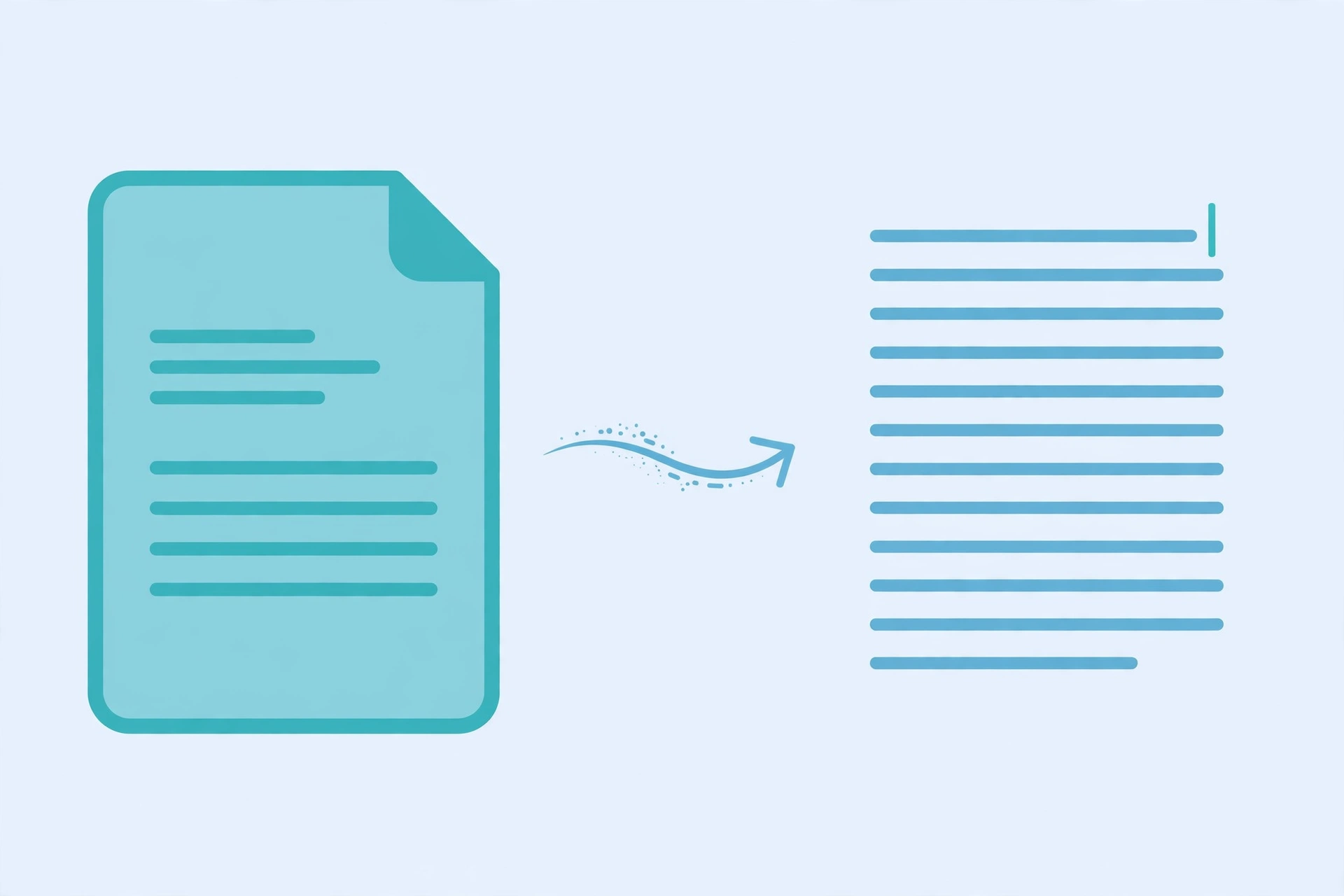
You have a PDF and you need the words inside it — to quote a paragraph, search a long report, or paste a section into a document of your own. Converting a PDF to text sounds simple, and it usually is, but the right method depends on what kind of PDF you have. A file made from a Word document converts cleanly in seconds; a scanned page is just a picture of text and needs an extra step. This guide covers four free methods, explains which one fits your file, and shows how to fix the usual problems.
The short answer
To convert a PDF to text, use a free PDF to Text tool in your browser: upload the PDF and download the plain text. That works for any PDF that already contains real text. If you only need a few lines, select the text in your PDF reader and copy it. If the PDF is a scan, run OCR first — Adobe’s OCR guide explains how its tools recognise text in scanned pages — or open the file in Microsoft Word, which converts PDFs to editable documents.
Which method fits your PDF?
| Your situation | Best method |
|---|---|
| Whole document, real text inside | Browser PDF to Text tool |
| A paragraph or two | Copy and paste from your reader |
| You want to edit it in Word | Open the PDF in Microsoft Word |
| Scanned pages or photos of text | OCR first, then export the text |
| A table you need in a spreadsheet | Convert PDF to Excel instead |
The quick test: open the PDF and try to select a sentence with your mouse. If the words highlight, the file has real text and any method below will work. If you can only drag a box around the page, it is a scan and you need OCR.
Method 1: Use a free PDF to Text tool in your browser
This is the fastest option for a whole document, and it needs no software.
- Open the PDF Funda PDF to Text tool.
- Upload your PDF by clicking to choose the file or dragging it onto the page.
- Wait while the text is pulled out of each page.
- Copy the text from the result, or download it as a plain text file.
The result is plain text: paragraphs, headings and lists survive, but fonts, colours and exact spacing do not. That is fine for quoting, searching or reusing the words, and it is exactly what a text file is for. If you need the layout as well, converting the PDF to Word keeps far more of the formatting — see our guide to opening a PDF file in Word.
Method 2: Copy and paste from your PDF reader
For a short passage, nothing beats copy and paste. Open the PDF in any reader — your browser, Adobe Acrobat Reader, or Preview on a Mac — drag across the text you need, copy it, and paste it where you want it.
Two things to watch for. First, line breaks: text copied from a PDF often pastes with a line break at the end of every printed line, which makes paragraphs look broken. Paste into a plain-text editor first, or use your word processor’s “paste as plain text” option, and the breaks usually disappear. Second, special characters: symbols, ligatures and accented letters sometimes paste as the wrong character. A quick read-through after pasting catches these.
Method 3: Open the PDF in Microsoft Word
Word has been able to open PDFs since Word 2013, and it turns them into editable documents you can save as .docx or .txt.
- Open Microsoft Word.
- Go to File, then Open, and choose your PDF.
- Word warns you it will convert the PDF into an editable document. Click OK.
- Edit the text, then use File, then Save As, and choose Plain Text (.txt) if you want a text file, or Word Document (.docx) to keep editing.
Microsoft’s own support page explains the same steps for scanned documents and notes that the conversion works best with documents that are mostly text. Complex layouts — tables with wide cell spacing, footnotes that run across pages, coloured page backgrounds — convert less cleanly, so keep the original PDF open beside the Word copy to compare the two.
Method 4: OCR for scanned PDFs
A scanned PDF has no text inside it, only pictures of pages. Before any converter can give you words, the scan has to be read — a process called OCR, short for optical character recognition.
If the scan is a single page, the free route is Google Drive: upload the PDF, right-click it, open with Google Docs, and Drive runs OCR and shows you the recognised text, which you can copy or download as plain text. For a whole scanned document, use a dedicated OCR tool: upload the PDF, let it recognise the text on every page, then export the result as text. Adobe’s OCR tools do the same job in Acrobat, turning a scanned file into a searchable, editable PDF first.
OCR is not perfect. Expect a few misread letters, especially in small print, unusual fonts or low-quality scans. Always proofread the result before you rely on it — numbers and names are the most likely to be wrong, and they are also the ones that matter most. For more on what Word can and cannot do with a PDF once the text is recognised, see our guide Can You Convert PDF to Word?
Fixing common problems
- The text comes out garbled. The PDF may use a font that does not embed its character map. Try a different converter — results vary between tools — or open the file in Word, which handles some broken fonts better.
- Words run together with no spaces. Some PDFs store text without space characters. A text editor’s find-and-replace cannot fix this reliably; re-converting with a different tool is usually the quickest fix.
- The order is wrong. Multi-column layouts often export as one long column, reading down the left column first and then the right. If order matters, convert page by page, or convert to Word, which keeps columns better.
- Tables collapse into a jumble. Plain text has no grid, so table cells run into each other. If the table is the point, convert the PDF to Excel instead of to text.
- Nothing selects at all. The file is a scan. Go back to Method 4 and run OCR.
What you lose when you convert to text
Plain text keeps the words and drops everything else: fonts, sizes, colours, images, links, headers and footers. That is usually the point — you want clean words you can reuse anywhere. But if you need the document to still look like the original, do not convert to text at all. Convert to Word to keep the layout, or to Excel if the content is a table, and keep the original PDF as your reference copy.
FAQ
How do I convert a PDF to text for free?
Upload the PDF to a free PDF to Text tool in your browser and download the result as a plain text file. For a few lines, copy and paste from your PDF reader works. Both are free; the browser tool is faster for whole documents.
Can I convert a scanned PDF to text?
Yes, but you need OCR first. A scan is a picture of text, not text itself. Upload the PDF to Google Drive and open it with Google Docs, or use an OCR tool, and the recognised text can then be copied or downloaded.
Why does my converted text have broken lines and missing spaces?
PDFs store where each line sits on the page, not how the text flows, so converters sometimes keep the printed line breaks or drop spaces. Pasting into a plain-text editor fixes most line breaks; for missing spaces, try a different converter or open the file in Word.
Is converting PDF to text the same as converting to Word?
No. Converting to text gives you plain, unformatted words in a .txt file. Converting to Word gives you an editable document that keeps headings, bold text and much of the layout. Choose text when you want clean words to reuse, and Word when you want to edit the document.