PDF Editor Online for Free: Edit Any PDF in Your Browser
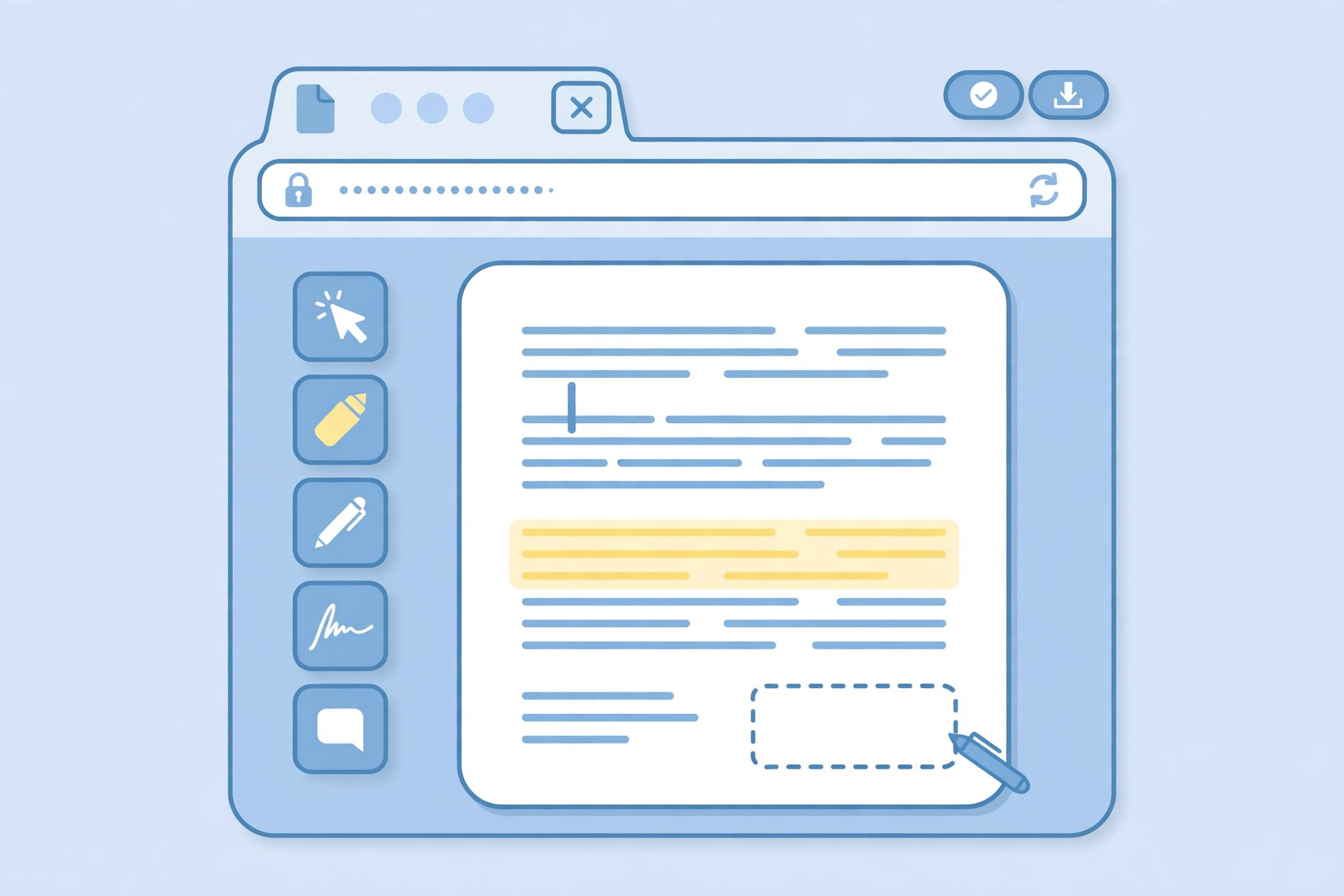
A PDF editor online for free lets you fix a typo, fill in a form, highlight a passage or sign a document without installing anything. You open the file in your browser, make the change, and download the result. No account, no payment, and — with the right tool — no upload to a server. This guide shows you how to edit a PDF online for free, what these editors can and cannot do, and how to check the result before you send it on.
Open a free online PDF editor, drop in your PDF, choose the tool you need — text, highlight, draw or sign — make your changes, and download the edited file. Work on a copy of the original, and check every page of the result before sharing it.
What a free online PDF editor can do
A browser-based editor covers the everyday jobs most people need. You can add a line of text to a form, correct a mistake by covering it and typing over it, highlight a key sentence, draw a circle around a figure, add a signature, or place a small image such as a logo. PDF Funda’s free PDF Editor offers exactly these tools — add text, white-out mistakes, highlight, draw, sign and place images — and it runs entirely in your browser, so the file never leaves your device and there is no signup. Page-level jobs such as reordering or removing pages belong to a separate tool: PDF Funda’s Organize PDF tool reorders pages, and the remove-pages tool deletes them. Knowing which tool does which job saves you from forcing one editor to do everything.
How to edit a PDF online for free
- Open PDF Funda’s free PDF Editor tool in your browser.
- Drop your PDF onto the page, or click to choose one file from your device.
- Pick the tool for the job: text to type, highlight to mark a passage, draw to circle or underline, or sign to add your signature.
- Click where the change belongs and make it. Keep text short and place it carefully — a PDF page is a fixed layout, so added text will not push other lines aside.
- Download the edited file under a new name, and keep the original untouched.
Add text the right way
Typing on a PDF is not the same as typing in a word processor. The text sits on top of the page, so match the font size and colour to the surrounding lines as closely as you can, and keep additions brief. A corrected date, a filled-in name field or a short note all work well. Rewriting whole paragraphs rarely does — if a page needs heavy rewriting, edit the original document and export a fresh PDF instead. That is the advice in our guide on how to edit a PDF, which explains how to choose the right method for each kind of change.
Highlight, draw and annotate
Highlighting is the safest kind of edit: it changes nothing about the text itself, so it cannot break the layout. Use it for passages a reviewer must notice, and use the draw tool for circles, arrows and underlines. Keep marks light and few — a page covered in yellow is harder to read than the original. If you are marking up a document for someone else, add a short note or comment near the mark so the reader knows what you want them to do.
Sign a PDF without printing it
Signing used to mean printing, signing by hand and scanning the page back in. A free online editor removes all three steps: draw your signature with a mouse or trackpad, or type your name in a script-style font, then place it on the signature line and resize it to fit. Check that the signature sits inside the right box and does not cover nearby text. For a fuller walkthrough, see our guide to signing a PDF online free, which covers what to check before you sign — including when a typed signature is and is not acceptable.
What free editors cannot do well
Some jobs are beyond a free browser editor. A scanned PDF is a picture of text, not real text, so it must go through OCR before its words can be edited — PDF Funda’s PDF to Word tool notes the same limit for image-only pages. Reflowing a multi-column layout, rebuilding a table or creating proper form fields also need heavier software. And white-out is not redaction: covering sensitive text with a white box hides it on screen but leaves the words in the file, where they can still be selected or extracted. For genuinely sensitive content, use a proper redaction tool that removes the text itself.
Before you upload: privacy and permissions
Only edit files you own or are authorised to change, and think about where the file goes. Many free editors upload your document to a server; a tool that processes the file in your browser avoids that entirely. If a document holds personal, financial or medical details, prefer a local or in-browser workflow and read the provider’s retention policy before uploading anything. The same caution applies to sharing: confirm the recipient is allowed to see the file, and remove comments or hidden notes you did not mean to send.
Common mistakes to avoid
The most common mistake is editing the only copy — always work on a duplicate. Next is trusting the export message: a “saved” notice only means a file was created, so reopen the result and check every changed page. People also forget that added text does not reflow, leaving words overlapping the original lines. Finally, many users upload a sensitive document to the first free site in the search results without checking what happens to it. A minute of checking avoids all four problems.
Frequently asked questions about editing a PDF online for free
Is a free online PDF editor really free?
The editor linked in this guide is free to use with no signup and no payment step. Some editors elsewhere limit the number of files per day or charge for extras such as redaction, so check the limits before starting a long document.
Is it safe to edit a PDF online?
It depends on the tool. An editor that processes the file in your browser never uploads it anywhere, which is the safest option for private documents. If a tool does upload your file, check its retention policy first and avoid uploading anything confidential.
Can I edit a scanned PDF with a free editor?
Not directly. A scanned page is an image, so the text must be recognised with OCR first. Convert the scan to an editable format, correct any recognition errors, and then make your edits.
Will my edits look the same on another device?
They should, because the edited file is still a PDF with a fixed layout. Open the result in a different viewer before sending it, and check fonts, signature placement and page order.
Final takeaway
A free online PDF editor handles the everyday fixes — a corrected line, a filled form, a highlight, a signature — in minutes and without installing anything. Pick the right tool for the job, work on a copy, and check the result before you share it. For bigger changes, go back to the original document instead of fighting the PDF.