Custom QR Code – Make a QR Code with Colours and a Logo for Free
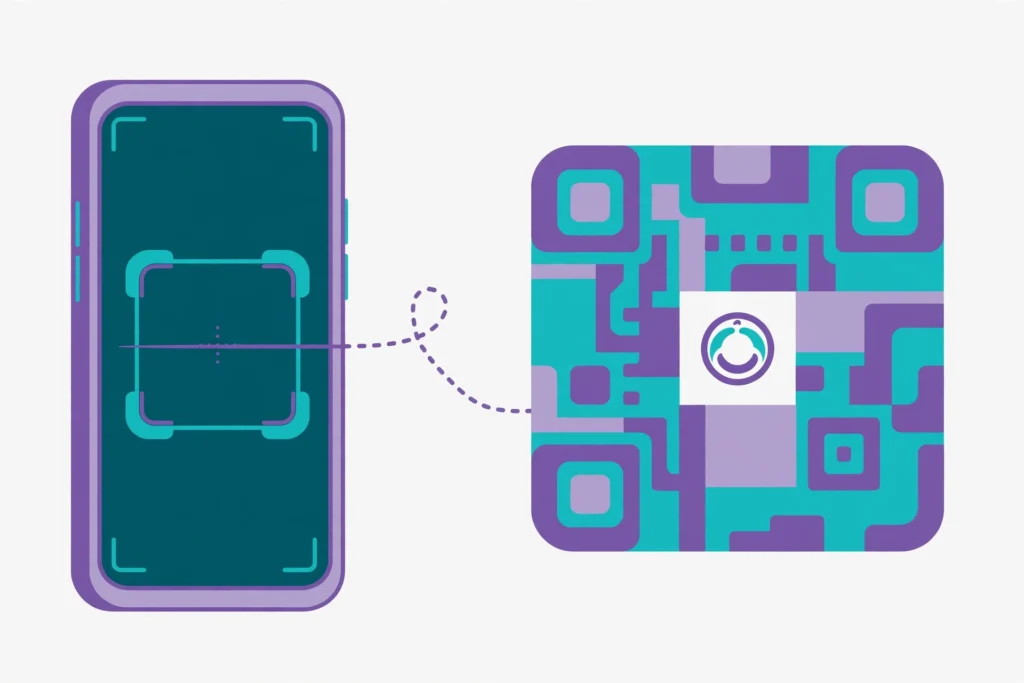
A plain black-and-white QR code works fine, but it looks like everyone else’s. A custom QR code carries your brand colours, your logo in the middle and a shape that fits your poster, menu or business card. People notice it, and they are more likely to scan it.
Making one takes a few minutes. You pick what the code should open, choose your colours and logo, and download a picture you can print anywhere.
What Is a Custom QR Code?
A custom QR code is a normal QR code with a personal touch. The black squares become your brand colour, the corners get a new shape, and a small logo sits in the centre. Underneath, it is still the same quick-response code that phones have scanned for years.
QR codes were invented in 1994 by Denso Wave in Japan to track car parts. Today they open websites, share Wi-Fi passwords, show menus and take payments. A custom design changes only how the code looks, not how it works.
The important rule is simple: the code must still scan. A design that looks great but will not scan is useless, so every style choice has to keep the code readable.
What Can a Custom QR Code Link To?
A QR code can hold more than a website address. Before you design anything, decide what should happen when someone scans it.
The most common choice is a website link — your homepage, a product page, a booking form or a special offer. Restaurant menus are another popular use: one code on the table opens the full menu on the customer’s phone.
Codes can also share a Wi-Fi password, save a contact card, open an email draft or start a payment. For a business card, a contact card code is handy, because the scanner can save your number with one tap.
Keep the content short. A short web address makes a simpler code with bigger squares, and bigger squares scan faster and from further away.
How to Make a Custom QR Code
Follow these steps with the free QR Code Maker on PDF Funda:
- Open the QR Code Maker tool.
- Type the text or web address the code should open.
- Set the size in pixels. A larger size suits print; 512 pixels or more is a good start for a poster.
- Choose Process and download the code.
- Check the download on your phone before you print it.
The tool makes a standard black-and-white code. To add colours and a logo, use a free image editor or a design app after downloading: place your logo in the centre, recolour the dark squares to your brand colour, and keep the three square markers in the corners easy to spot.
Choosing Colours That Still Scan
Colour is where most custom QR codes go wrong. A scanner reads the code by telling dark squares apart from light ones, so contrast matters more than taste.
Use a dark colour on a light background. Dark blue, dark green or black on white all work well. A light code on a dark background usually fails, because most scanners expect dark on light.
Never use two colours that are close in tone, such as light grey on white or yellow on pale green. If you are unsure, print a test copy and scan it with two different phones before you order a full print run.
The three square markers in the corners help the phone find the code. Keep them bold and clear, and do not cover them with a logo or a pattern.
Adding a Logo Without Breaking the Code
A logo in the middle of a QR code is the classic custom touch, but it covers part of the pattern. QR codes can handle this because they include error correction — extra data that lets a scanner rebuild missing pieces.
Keep the logo small, no more than about a fifth of the code’s width. Put it dead centre, on a white background, so it does not touch the corner markers. A simple logo works better than a detailed one at small sizes.
Always test after adding the logo. Scan the code with the phone camera and with a second scanner app, from a normal distance and in normal light. If it scans slowly or fails, shrink the logo or raise the error-correction level.
Where to Use a Custom QR Code
Custom QR codes earn their keep wherever print meets the web.
On a business card, a code that opens your website or saves your contact details turns a piece of card into a working link. On a poster or flyer, it lets people reach the offer without typing a long address.
Restaurants print them on tables and receipts for menus and feedback forms. Shops put them on packaging to open instructions, warranty pages or a video. At events, a code on a badge or a stand can open the schedule or a sign-up form.
Wherever you print one, leave a quiet margin of white space around the code. Scanners need that clear border to find the edges, and a code crammed against other graphics will scan poorly.
Common Mistakes to Avoid
The first mistake is a code that is too small. On a business card, keep the code at least 2 centimetres across. On a poster, bigger is better, because people scan from further away.
The second is a link that never gets tested. Always scan the final printed version, not just the file on your screen. A code that works on screen can fail in print if the colours shift.
The third is a link that can break. A short, stable web address is safer than a long one with tracking codes. If the page moves later, the printed code stops working, and you cannot recall every flyer.
The fourth is low print quality. A blurry code will not scan. Export the code as a PNG at high resolution and print from that file, not from a screenshot.
Frequently Asked Questions
Is a custom QR code free to make?
Yes. The QR Code Maker on PDF Funda is free, with no sign-up. Design apps that add colours and logos often have free plans too.
Do custom QR codes expire?
A code made from a plain web address does not expire. It stops working only if the web page it points to is removed or moved.
Can I put my logo on a QR code?
Yes, as long as the logo stays small and centred and the code still scans. Test it on more than one phone before printing.
What size should a QR code be for print?
At least 2 centimetres on a business card, and larger on posters. A good rule is to make the code at least one tenth of the distance people will scan it from.
Will a coloured QR code scan?
Yes, if the contrast stays strong. Dark colours on a light background work best. Avoid pale colours and low-contrast pairs.
If your logo is in the wrong format, convert it first with our Image Converter.
You can also turn a printed design into a shareable file with our JPG to PDF converter.